
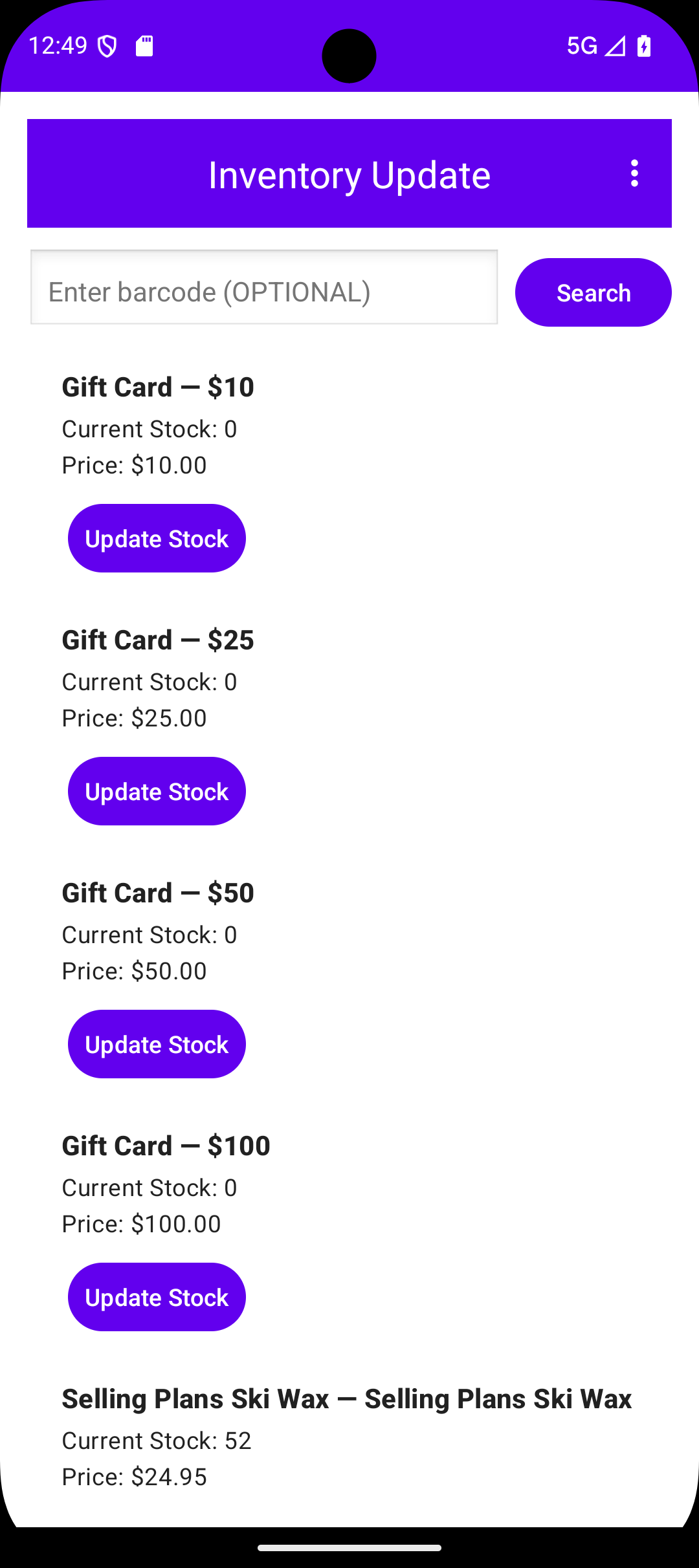
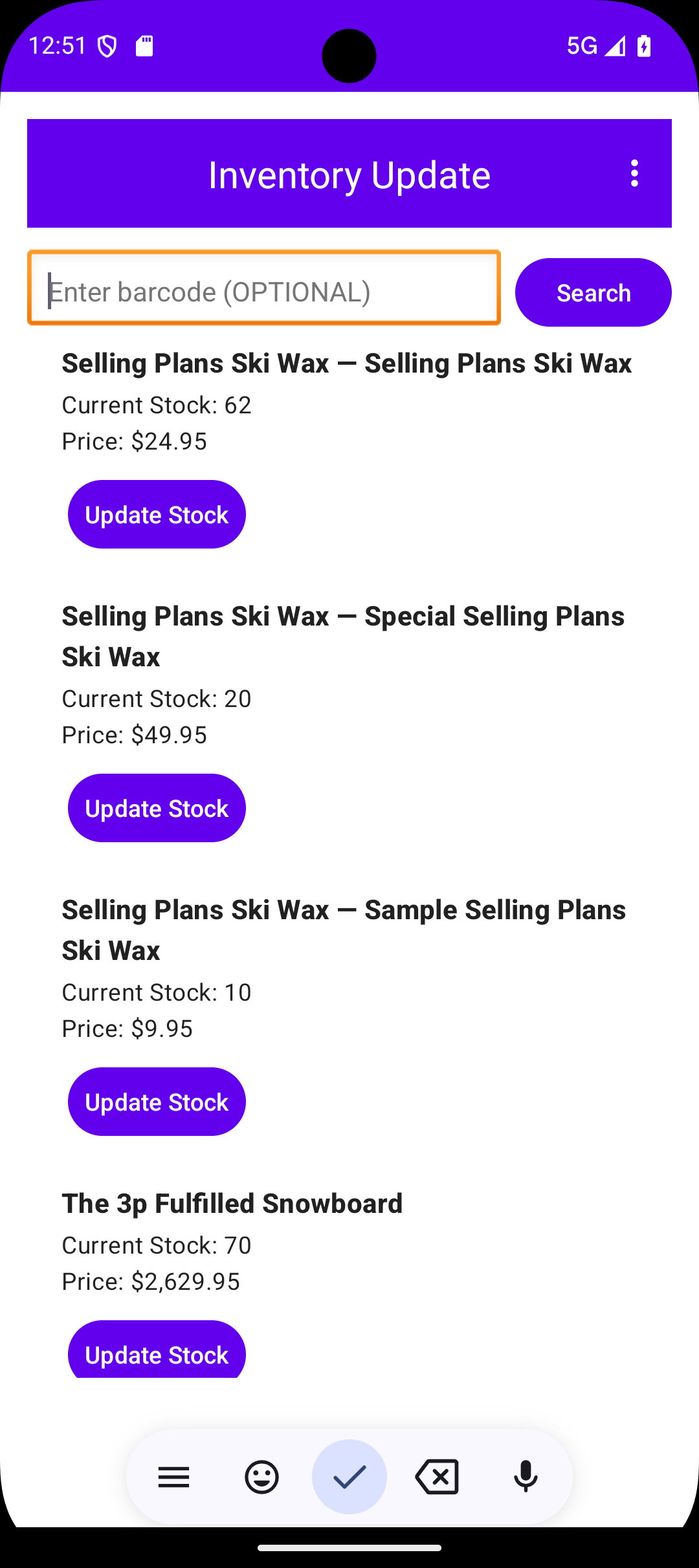
■ Scan any barcode — Look up products instantly on the floor
■ Update stock in real time — Changes sync to your POS immediately
■ Connect your POS — Works with Clover, Shopify & EposNow
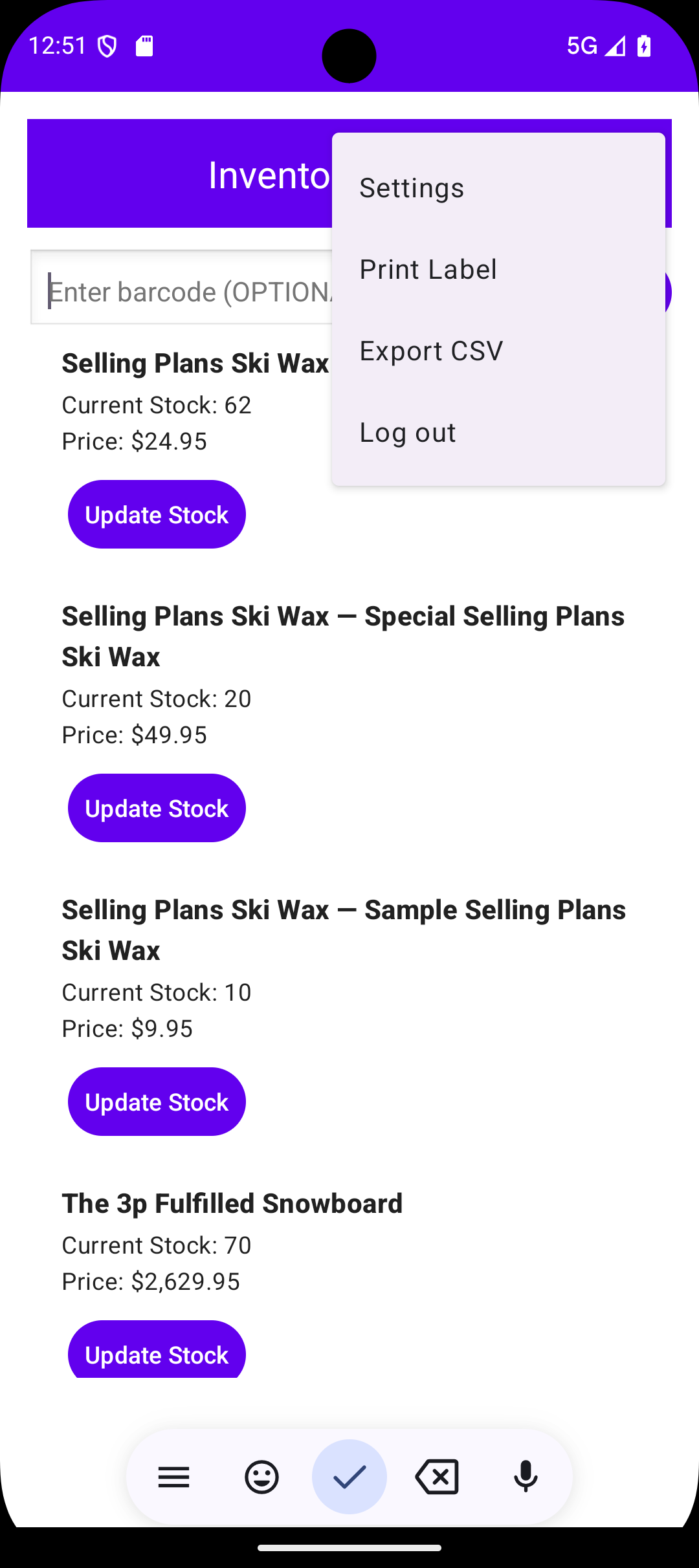
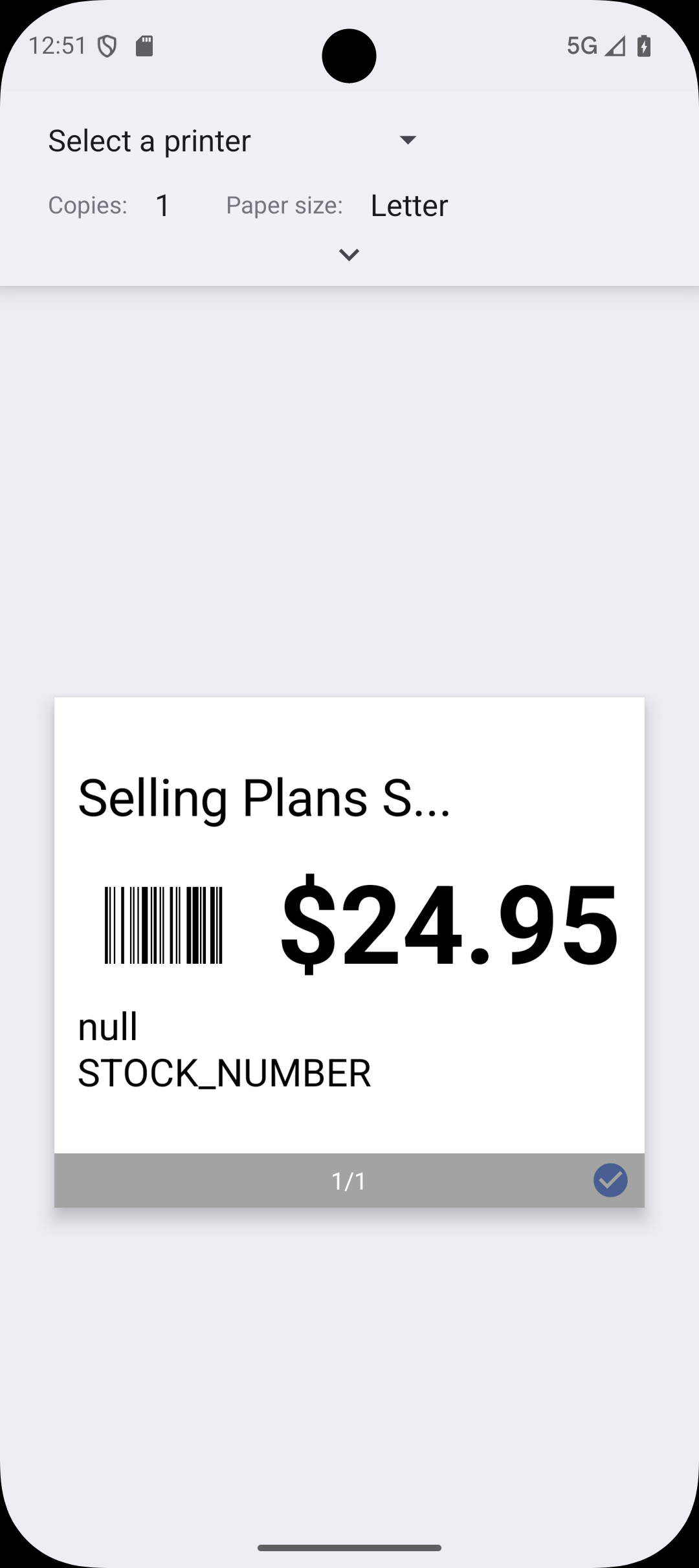
■ Print labels — Thermal label printing from your Android device
■ Export to CSV — Full inventory export in one tap
■ 30-day free trial — No credit card required to get started
■ No POS? No problem — Use Local CSV or Google Sheets as your data source
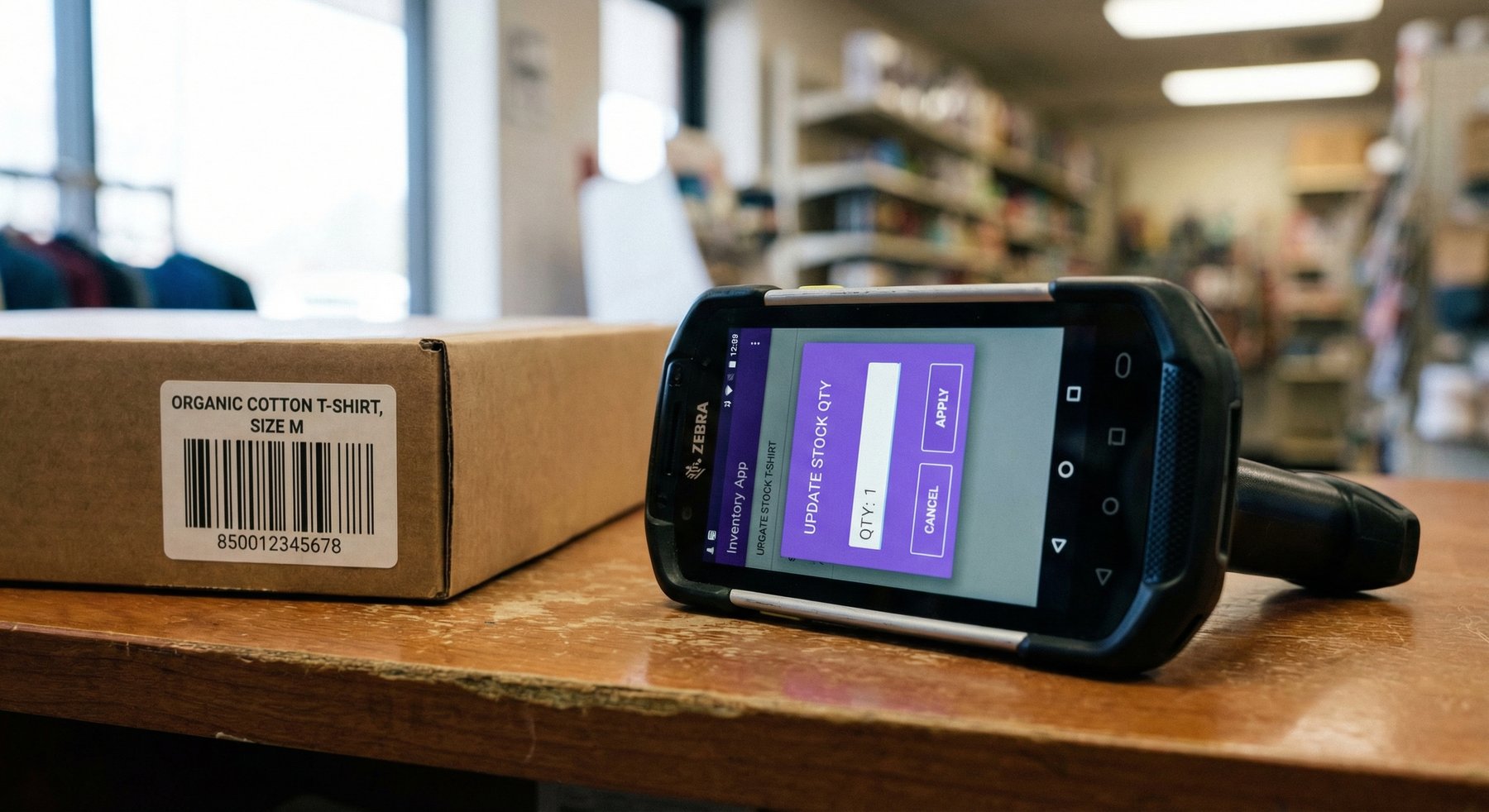
🏪 Retail store owners — Scan barcodes on the floor and update stock without leaving the aisle
📦 Warehouse managers — Keep accurate counts across receiving, storage, and dispatch
🛒 Multi-location businesses — Manage inventory across multiple stores from a single account
📊 Inventory supervisors — Export full reports to CSV and push live updates to your POS in seconds

EasyInventory is the Android app for store owners and warehouse managers who need accurate stock counts without the friction. Scan a barcode, see your current levels, and push updates to your POS — all in under 10 seconds.
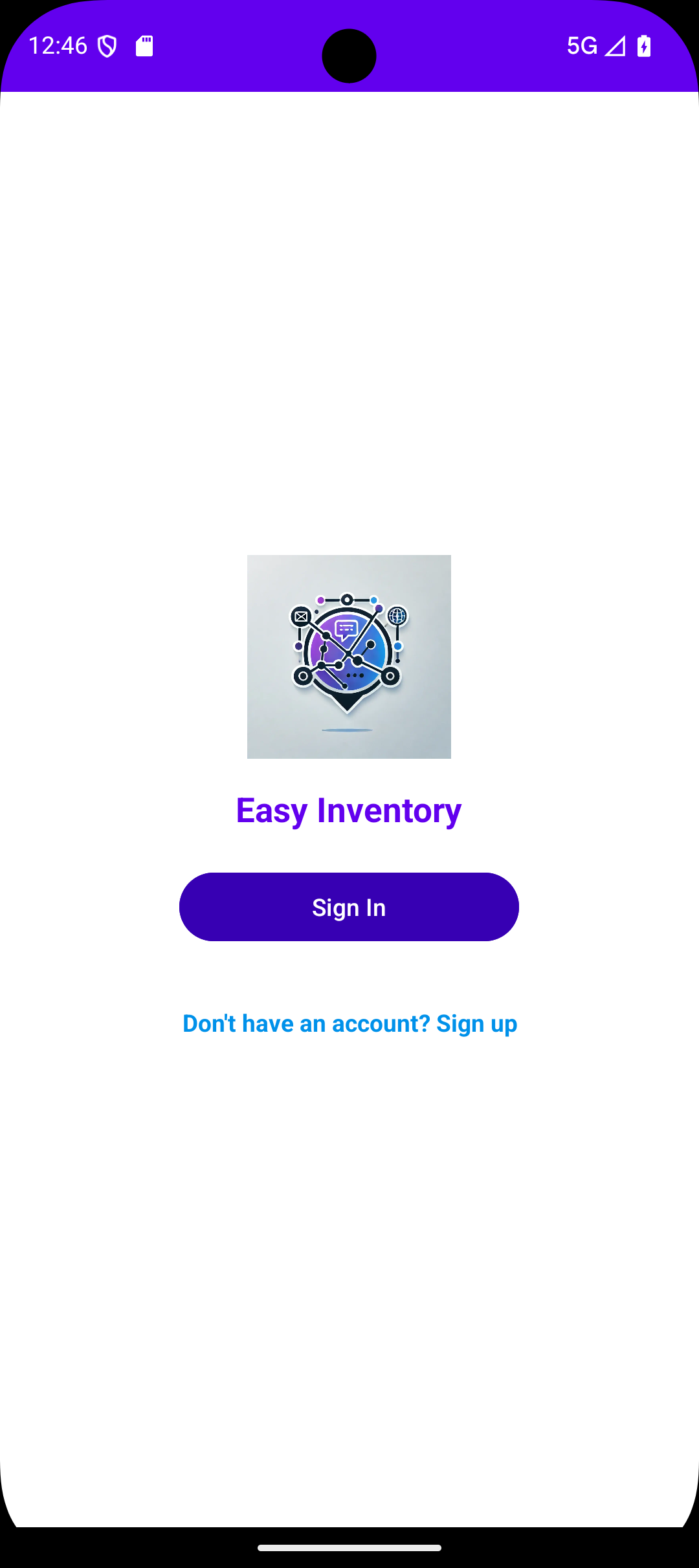
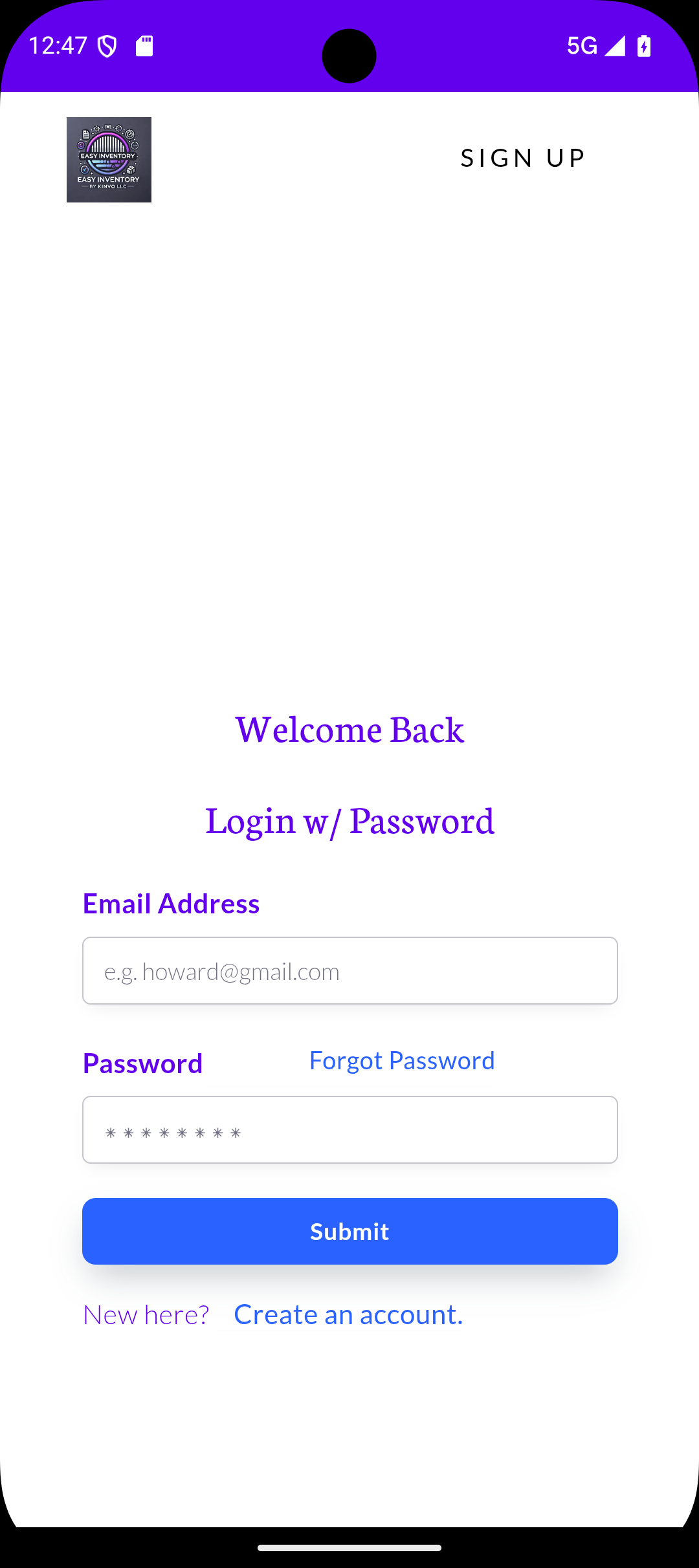
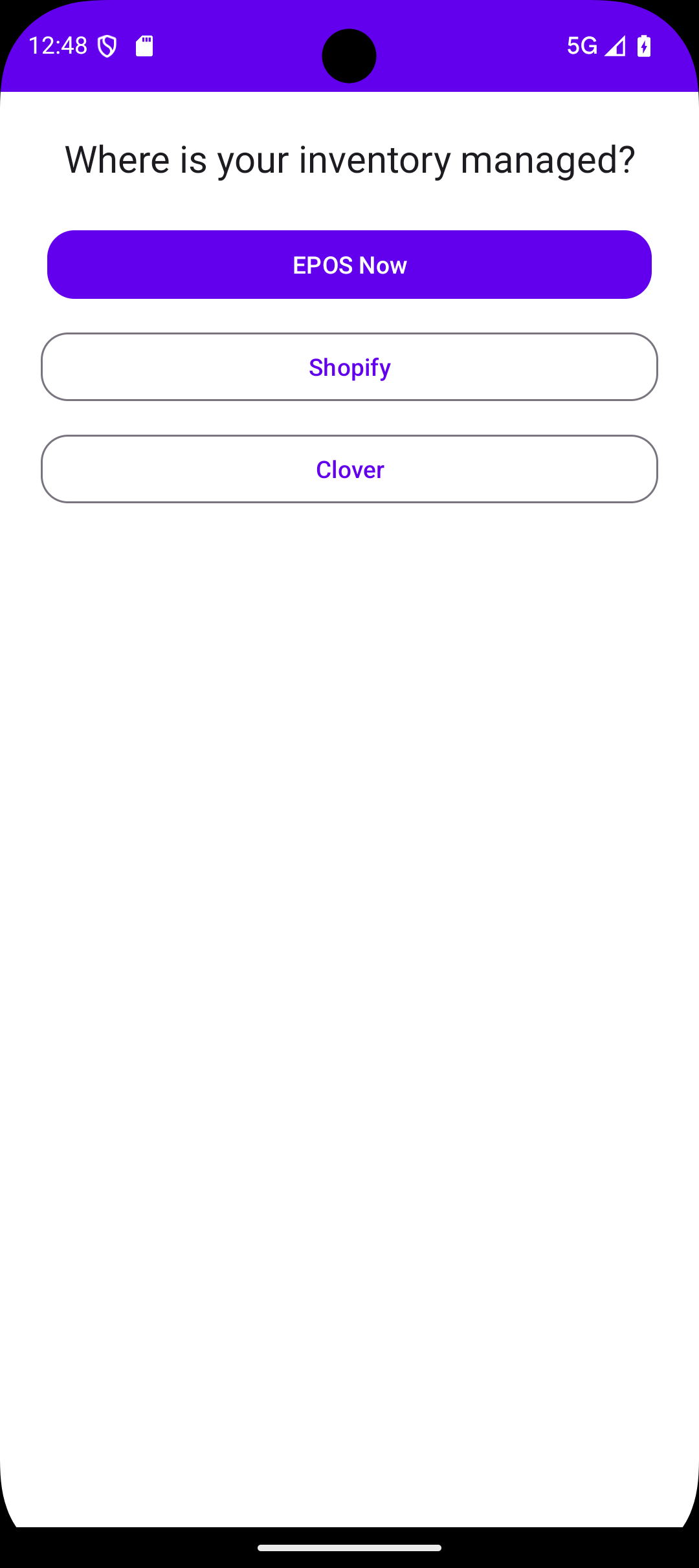

✅ Step 1: Open Settings
Go to Settings on your Android device
✅ Step 2: Navigate to "Apps" > Tap the ⋮ Menu (Top Right)
Tap Apps
Then tap the three dots (⋮) in the top-right corner
Select Special access
✅ Step 3: Go to "Install Unknown Apps"Inside Special Access, select Install unknown apps
✅ Step 4: Grant Permission to the Browser or File App
Choose the app you’ll use to download the file (e.g., Chrome, My Files, or Samsung Internet)
Tap it and toggle on:
“Allow from this source”
✅ Step 5: Disable Auto Blocker (if enabled)
Go to Settings > Security & PrivacyTap Auto Blocker and switch it OFF
(or temporarily disable “Blocks apps from unauthorized sources”)
✅ Step 6: Download & Install the App
Sign into your account tap Download
Once downloaded, tap the EasyInventory.apk file and select Install
First 30days are free
No, we don't force you into any long-term contracts. Our best price is available as an annual subscription, but we offer monthly subscriptions as well.
We accept online payments through Visa, MasterCard, and American Express.
Clover
1. Open the EasyInventory app and navigate to Settings > POS Provider.
2. Select Clover and tap Connect to Clover.
3. A secure browser window will open. Log in with your Clover merchant credentials.
4. Select your store location and tap Approve to allow EasyInventory to read and update your stock levels. You will be redirected back to the app automatically.
Shopify
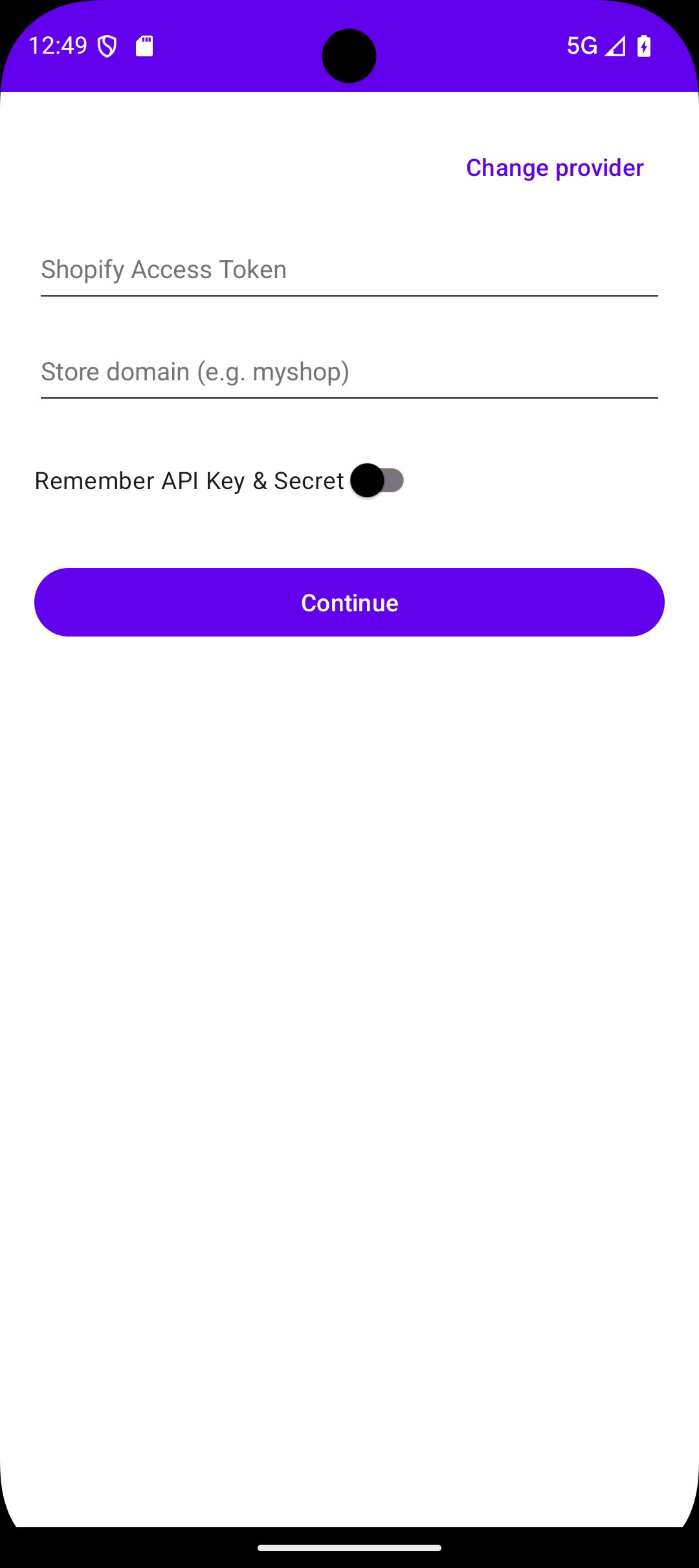
1.Open the EasyInventory app and navigate to Settings > POS Provider.
2. Select Shopify.
3. Enter your store's .myshopify.com web address and tap Connect to Shopify.
4. Log in to your Shopify admin dashboard when prompted and tap Install App to grant access. You will be redirected back to the app.
Google Sheets
1. Open the EasyInventory app and navigate to Settings > POS Provider.
2. Select Google Sheets and tap Sign in with Google.
3 .Choose the Google account where your inventory spreadsheet is saved and grant read/write permissions.
4. Select your specific spreadsheet and worksheet tab from the dropdown in the app.
EposNow
EposNow currently requires API keys to connect.
1. Open the EasyInventory app and navigate to Settings > POS Provider.
2. Select EposNow.
3. Follow EposNow API Guide to generate your API Key, API Secret, and Location ID.

